

































Here at XMPro, we are constantly adding to our growing library of integrations for enterprise applications, data platforms, machine learning tools, and operational systems. These pre-built integrations allow our customers to build composable digital twins that are not only scalable but highly customizable for their specific use cases.
We are excited to announce that the Telit DeviceWise integration is the latest agent to join our catalog. The Telit integration features a Listener, Context Provider, Action Agent
The Telit deviceWise Agents allow you to connect to a Telit IoT Portal using the deviceWise API and include Thing Properties and Alarms into your Data Stream:
- Properties store (any) historical data for a thing.
- Alarms represent the thing's alarm state.
For more information on using this API, please see the Telit IoT documentation.
The Listener allows you to retrieve the current value of the selected Thing Properties or Alarms on the IoT Portal.
The Action Agent enables you to publish the supplied Thing Property or Alarm details to the IoT Portal.
EXAMPLE
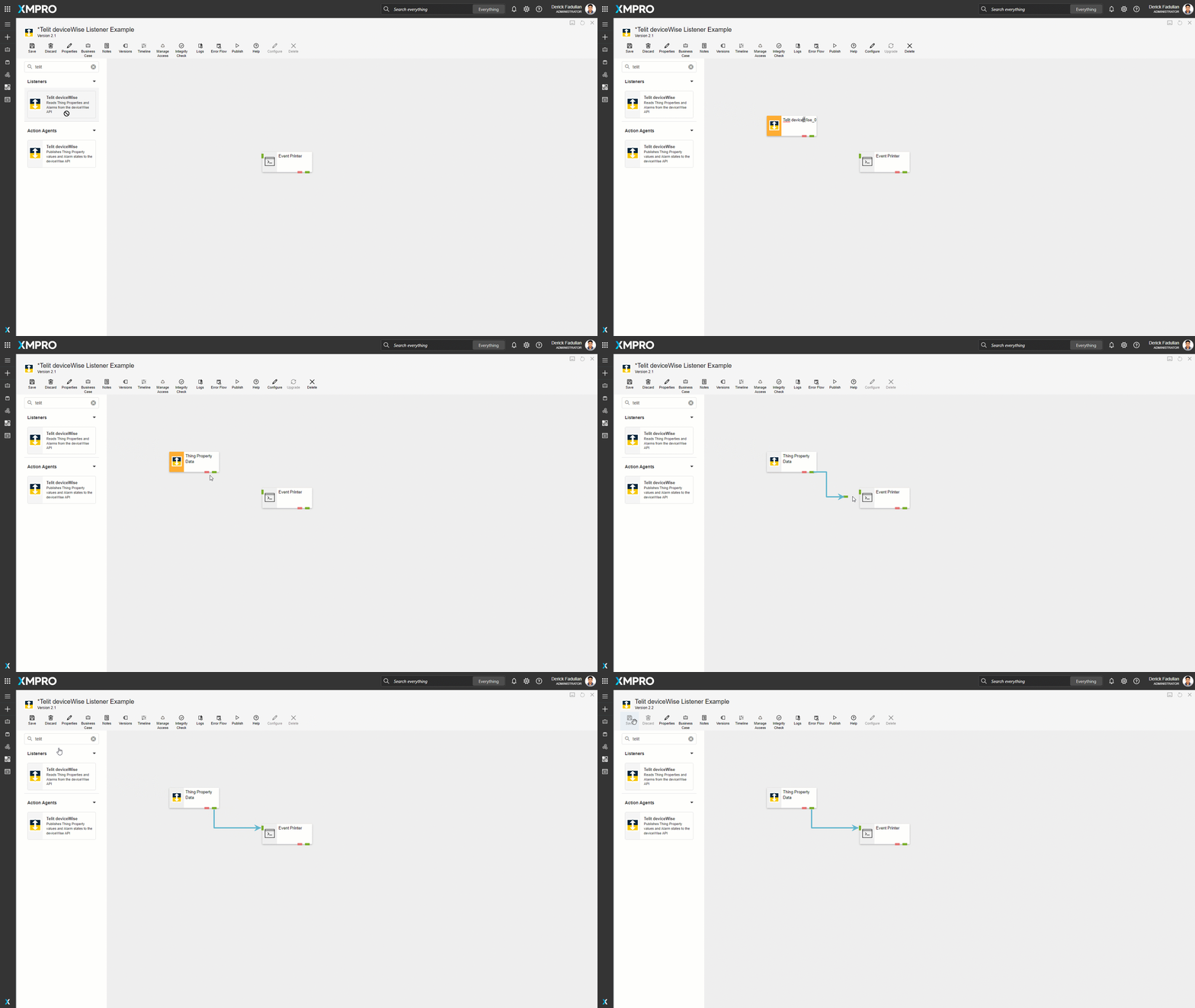
Step 1: Add the Agent
Drag the Telit deviceWise Listener onto the canvas and rename it. Link the output endpoint to the printer and save the Data Stream.
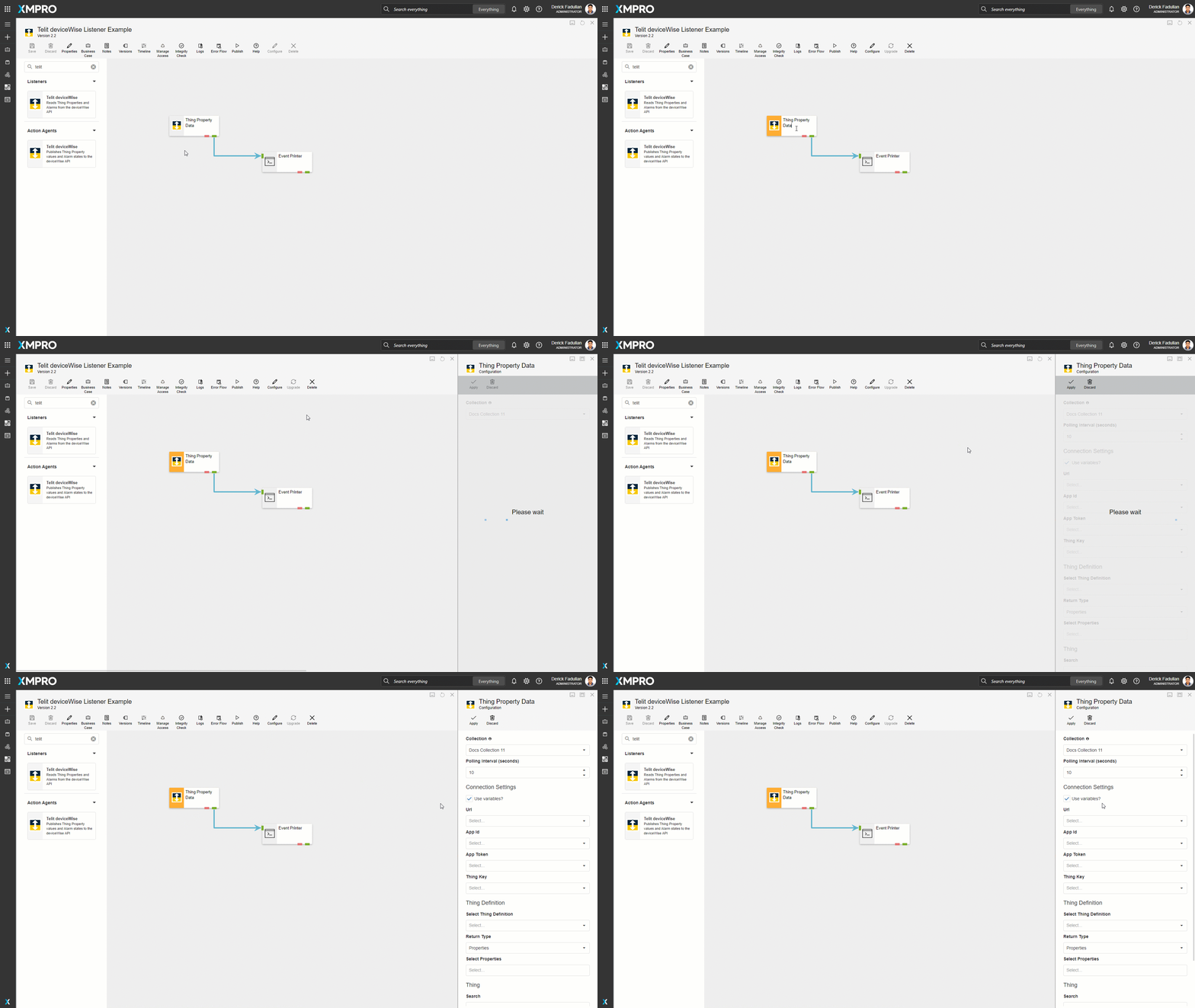
Step 2: Configure General
Select the Agent and click Configure. In this case, keep the default Collection and polling interval.
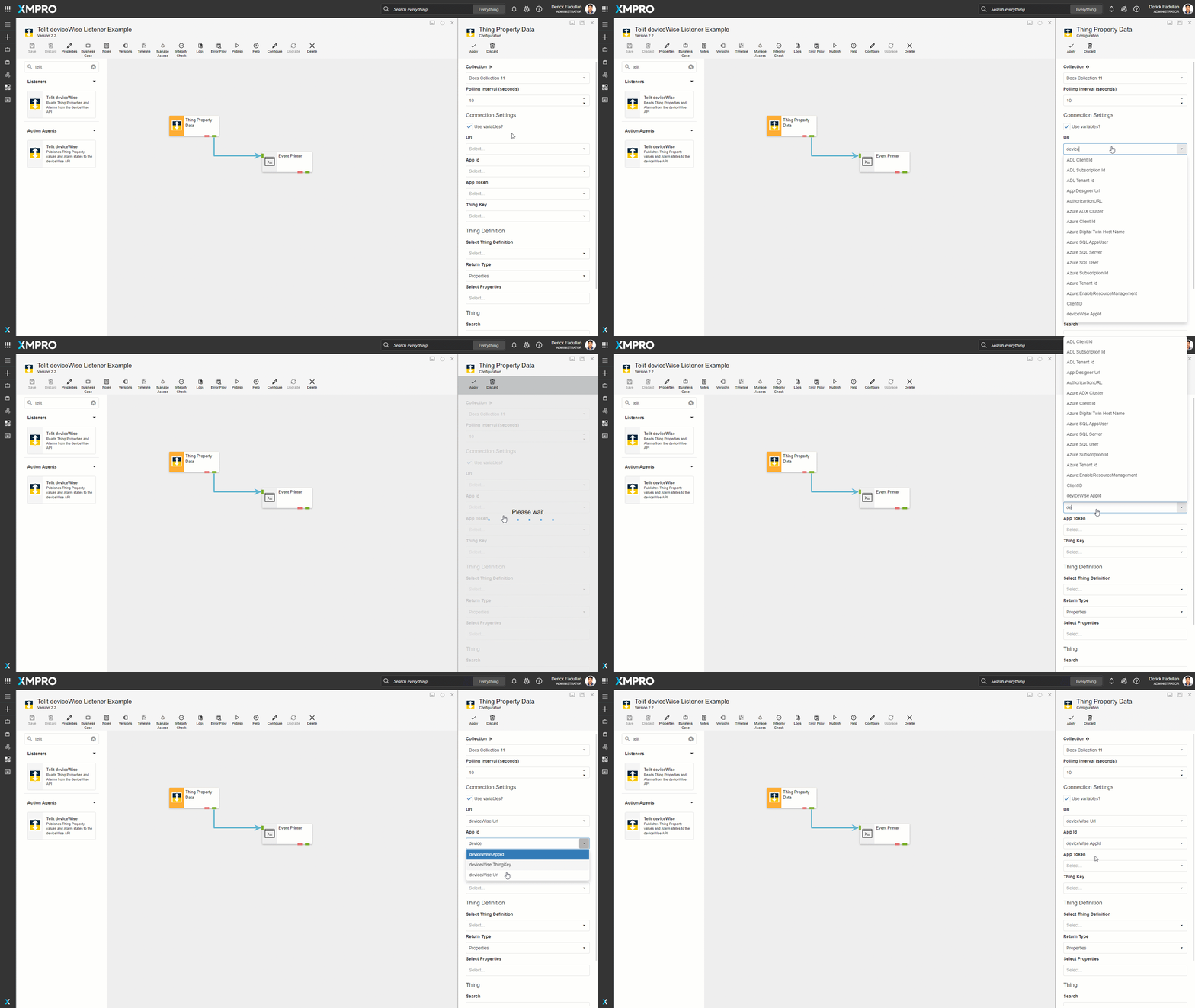
Step 3: Configure Connection Settings
Enter the Connection Settings of the IoT Portal to which you want to connect: Url, App Id...
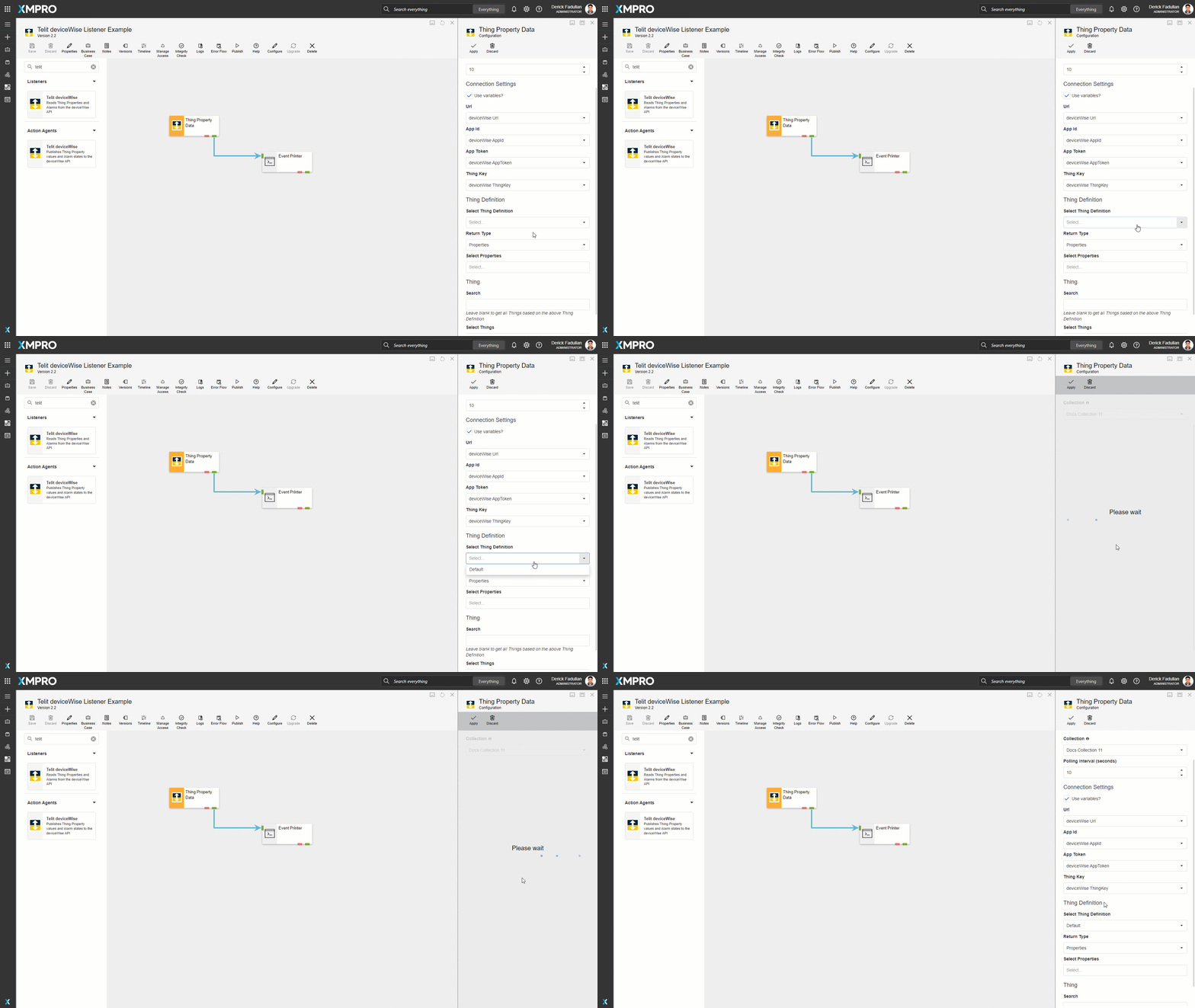
Step 4: Configure Thing Definition
Select the Thing Definition. In this case, select Default.
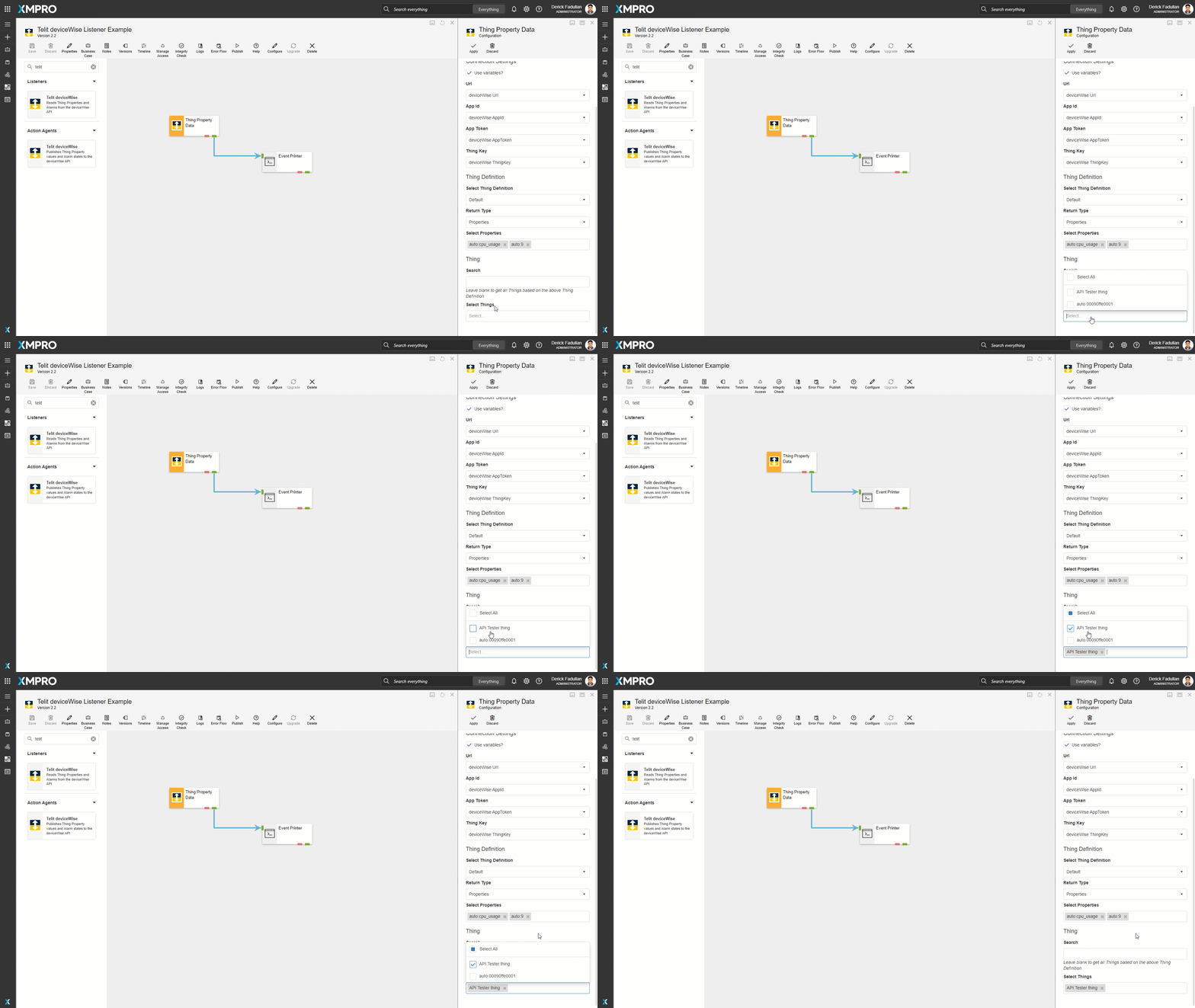
Step 5: Configure Thing
Select the Search filter and all Things to be monitored. In this case, leave the Search blank and set Select Things to API Tester Thing.
Step 6: View Results
Apply the changes, save the Data Stream and publish it.